#29. Using AI Without Losing the Plot
Notes from someone trying to stay coherent under abstraction

You might also enjoy:


Most discussions about AI productivity tools frame the problem as speed, efficiency, or output. But I don’t use AI tools just to get more done.
One of the realest problems in modern knowledge work is abstraction without grounding. Work has moved upstream, with decisions being made earlier, with less information, across more domains, and under tighter feedback loops. Thus, as work becomes more abstract, the real risk is not just inefficiency but also fragmentation. Good ideas scattered across meetings, messages, decks, and documents until nothing quite coheres and the surface area for busywork explodes.
The question I’ve been trying to answer for myself is simple, but not easy: How do I keep my thinking sharp, cumulative, and non-fragmented while moving fast?
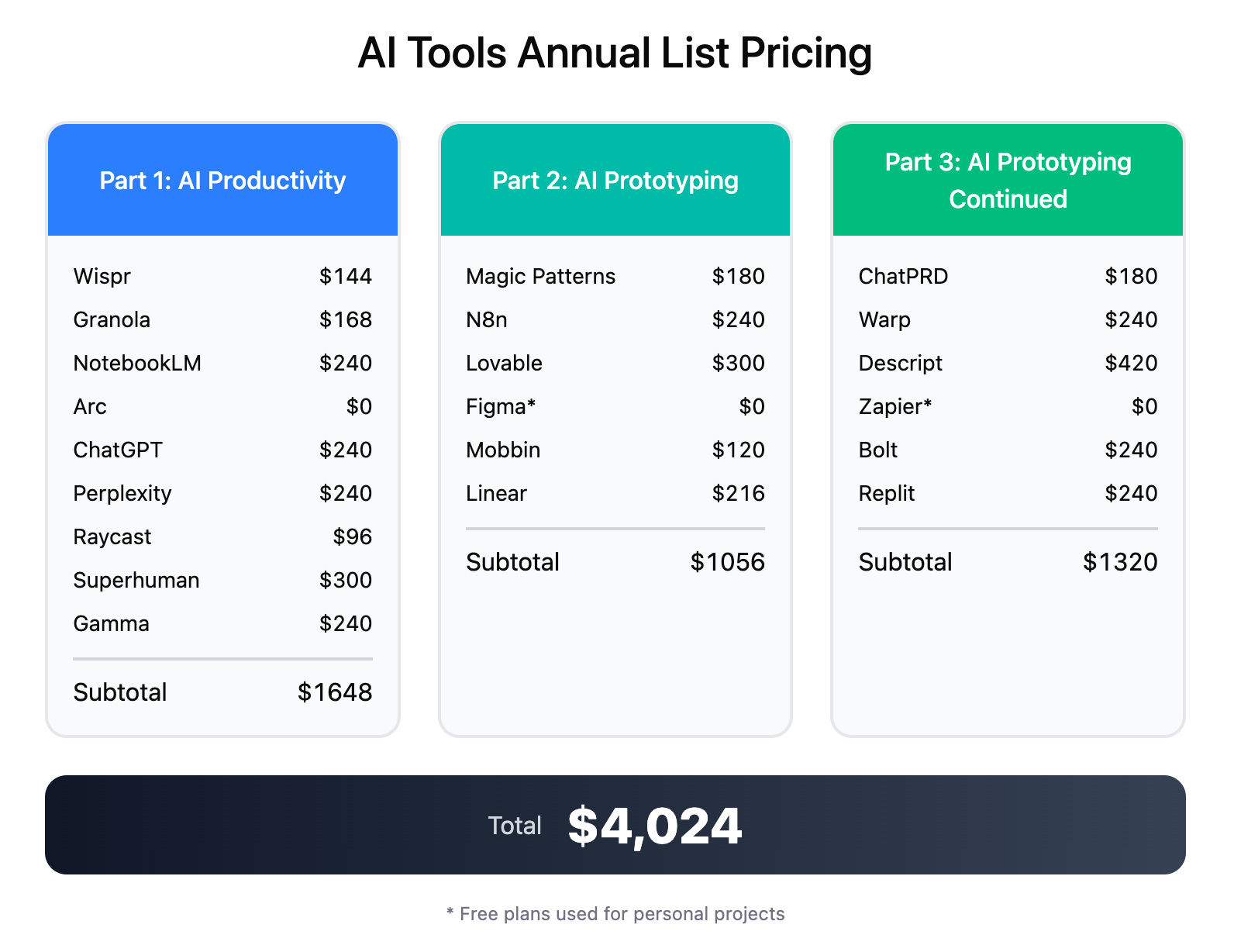
Over the past 6 months I’ve evaluated ~$4,000+ worth of AI-native productivity and prototyping software. A subset of these changed how I work and have earned their place as a part of my workflows. What follows are a few tools I use regularly. This list is definitely not exhaustive. I’m constantly experimenting.
Wispr
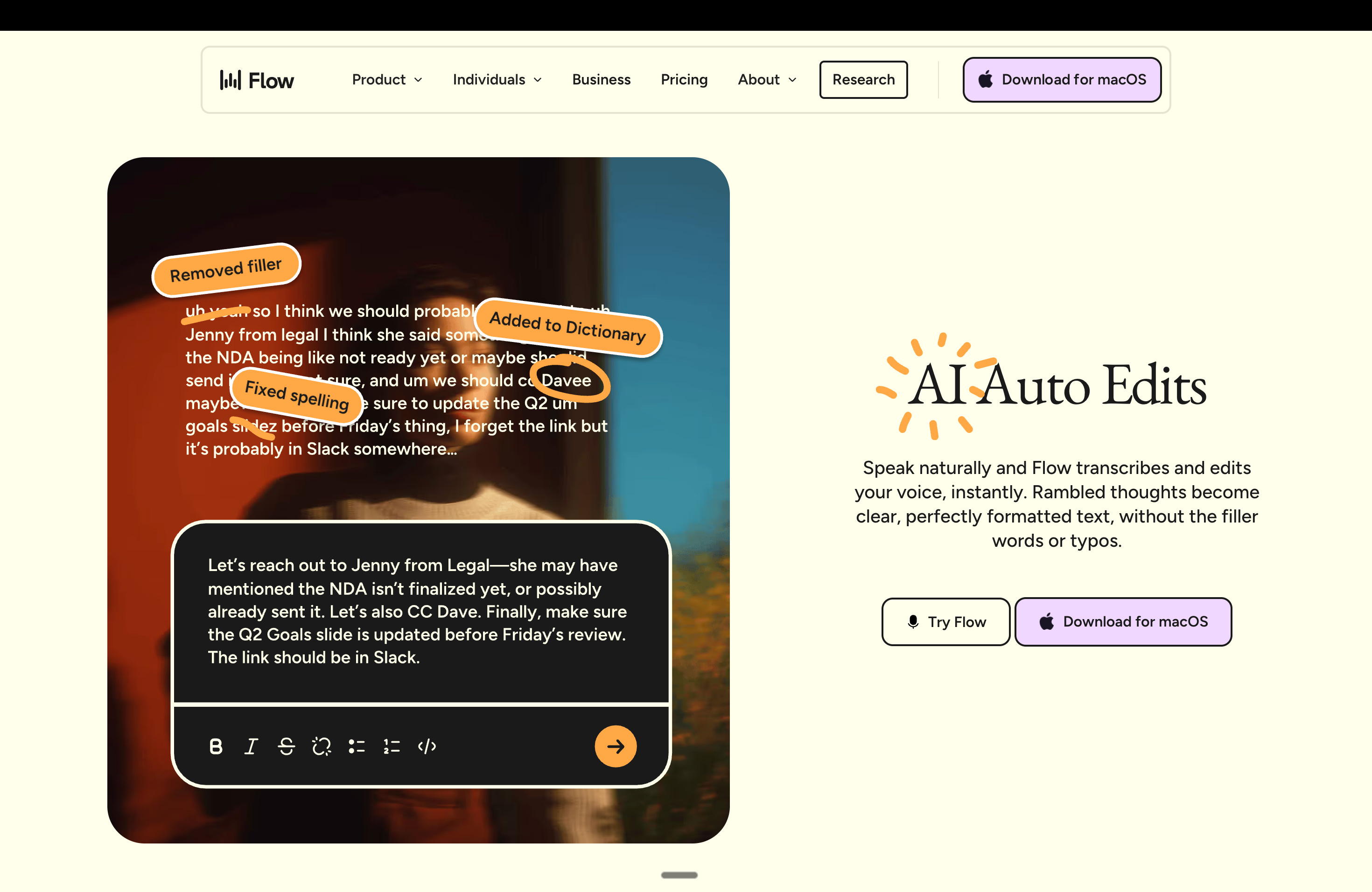
Wispr lets me stay in the thinking phase longer by effectively turning my computer into a voice-driven interface. Often, raw thinking can be messy before it’s useful. I may ramble, talk in half-sentences, and change direction mid-thought as new inspiration hits. If I force myself to type everything cleanly, I either slow down or start editing too early.
With Wispr, I can just hit my designated key on my Macbook and talk. I’ll dump a stream of consciousness at my computer and let it sort things out. It actually does a good job adding basic coherence, and there’s far less cleanup than if I tried to type everything out properly myself. It also saves time. Dictating is faster than typing, especially for first-pass thinking. I use it for notes, drafts, and even quick replies to texts or emails when I don’t want to break flow.
On Mac, the experience is simple. I hit my designated key and start talking. On iOS, it’s much weaker. Activating Wispr is clunky, and keeping it on means it’s always listening, which I don’t love. I mostly avoid it there.
Granola
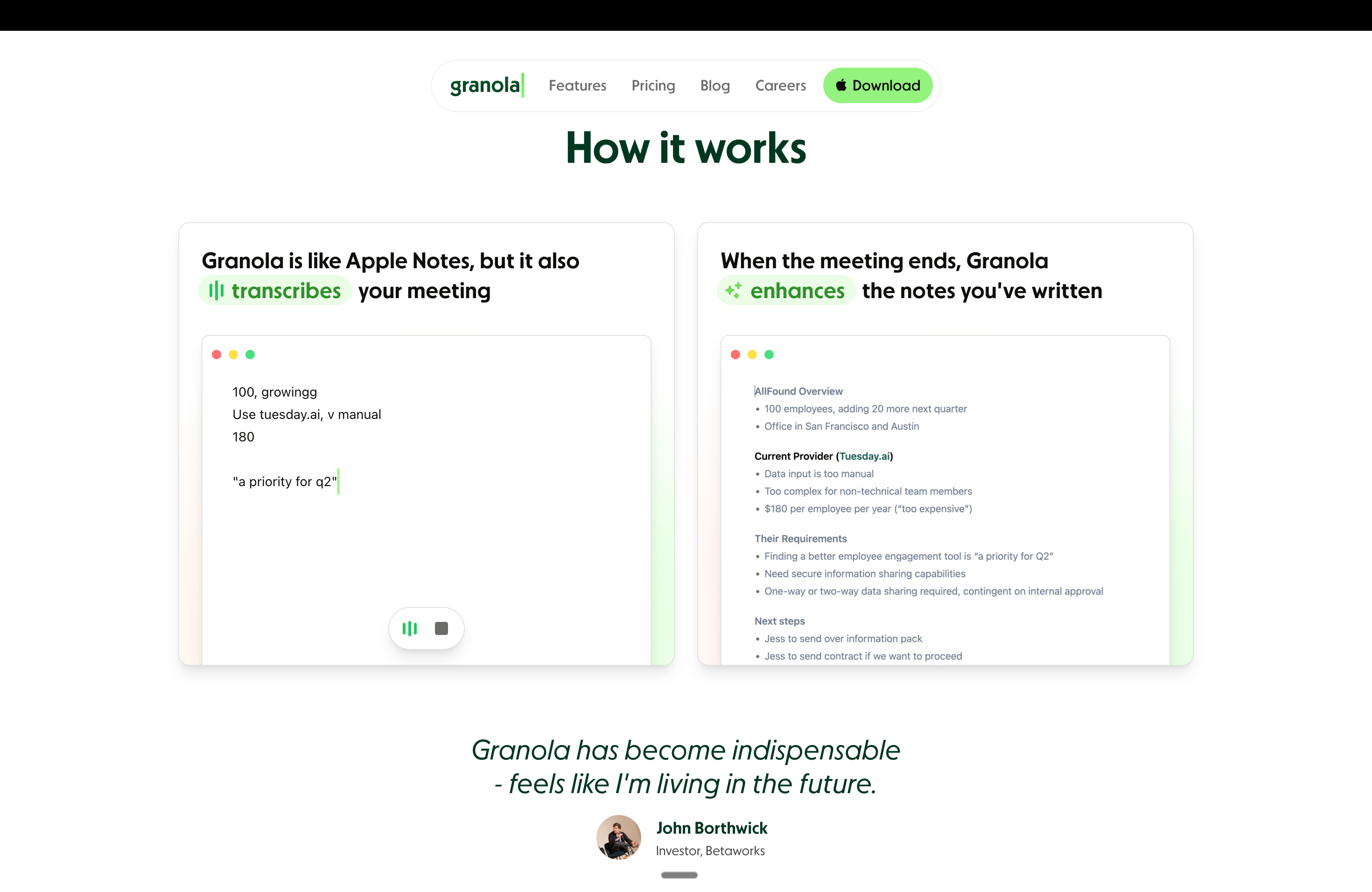
The value of a meeting is not just the decision itself but also the path taken to get there: the objections raised, the hesitations, the language people use before alignment solidifies, etc. Traditional note-taking flattens all of that into a summary, which is often the wrong artifact to keep.
Granola works for me because it keeps far more of that context intact. It sometimes picks up details I miss in real time, which ends up mattering later. It also lets me stay present in the conversation instead of splitting attention between listening and note-taking. Moreover, the capture itself is surprisingly accurate. Plus, having access to the raw transcript, and being able to query it afterward, has changed how useful old meetings actually are.
A few more notes on the fluidity of the experience: there is no bot that joins the call, it can transcribe any meeting on any platform, it cannot record audio/video (it simply generates a transcript from device audio). The one thing on my wishlist though would be better speaker recognition versus generating a homogenous set of notes with speaker names only occasionally referenced.
NotebookLM
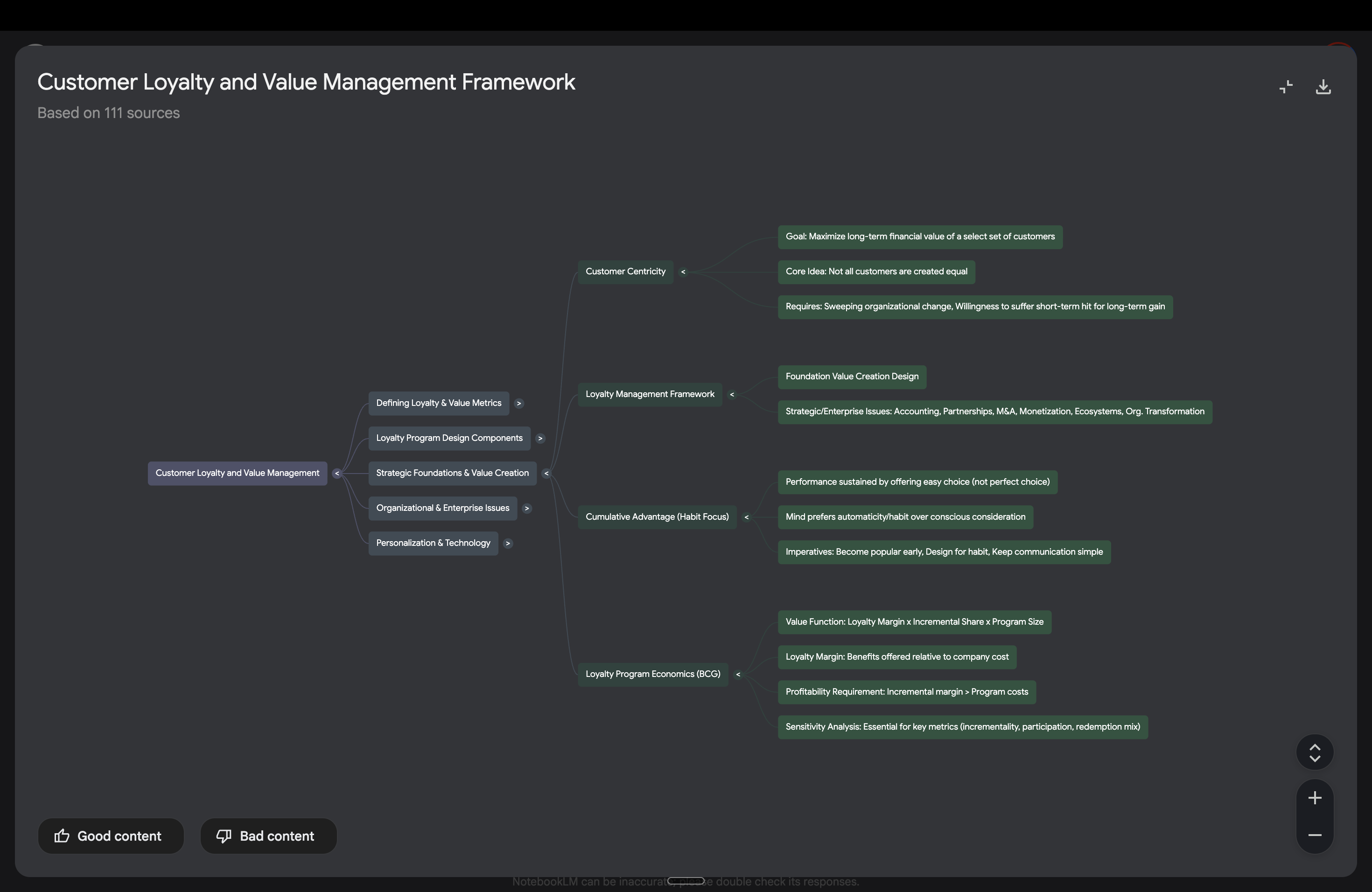
As your work piles up over time, consistency and knowledge retention become harder to maintain. I accumulate a lot of notes, drafts, and half-formed ideas across different projects and time horizons. The risk isn’t just forgetting things. It’s contradicting myself without realizing it, or revisiting the same ideas without actually refining them. NotebookLM has been useful as a way to pull all of that material into one place and treat it as something I can interrogate, not just archive. I use it to reinforce learning and surface patterns I wouldn’t catch on my own.
At its core, NotebookLM is a retrieval-augmented generation (RAG) system. It doesn’t answer questions from a generic model of the world, but rather answers them by grounding responses in the specific documents you give it. This matters because it keeps the reasoning tethered to your work, not an abstract average of the internet.
In practice, it feels like an extension of a personal knowledge base or second brain. From the same source material, I’ll sometimes generate mind maps, flashcards, or short audio-style summaries to revisit ideas from different angles, especially when I want something to stick rather than just be searchable. One concrete way I use this is at the end of a quarter. I’ll load all the material from a class into a single NotebookLM project. Months later, if I’m working on something professionally or personally that overlaps with that subject, I can query that notebook and be guided back to the relevant concepts, arguments, and source material without having to reconstruct everything from scratch.
Arc (and the browser as an environment)
Environment design matters more than most people admit, and your browser is your main gateway to the internet. Most browsers seem to reward tab sprawl (I think my personal record was 500+ tabs). Once I was consistently sitting at 100+ at any given time, it was obvious something was broken. Context switching is expensive. When everything lives in the same place, research bleeds into writing, writing bleeds into school, school bleeds into work, and my thinking gets sloppier without me noticing.
One of the things I appreciate about Arc is that it forces separation. Research stays separate from writing, which stays separate from school, which stays separate from work, admin, etc. It isn’t about aesthetics…the lack of clutter makes it easier to stay focused on the actual problem in front of me.
A lot of the value comes from small, practical things done well. It’s fast, the shortcuts are good, I like having the navigation bar and all windows anchored to the left where they stay out of the way, easels work well as temporary canvases, and spaces and folders keep things from turning into a mess. Despite being Chromium-based, it also feels lighter on computer resources than Chrome for how I use it. Multi-device support is another win. I’ll often open something on my laptop and pick it back up on my phone the next day without thinking about it. That continuity is reliable.
However, it’s not perfect and can sometimes be buggy. Embedded YouTube videos sometimes refuse to load, and using extensions requires me to occasionally switch back to Chrome. But 90 percent of the time, I live in Arc. I’m also testing newer browsers like Comet from Perplexity and Atlas from OpenAI. They push this idea further, treating the browser less like a dumb container and more like something that can search, summarize, and reason inline instead of sending you off to ten different tabs.


Foundation Models (ChatGPT, Claude, Gemini, Perplexity, etc.)
I’m deliberately pluralistic when it comes to large language models. I don’t expect any single model to be best at everything, and I primarily use them as thinking partners, mirrors, and accelerants.
I use ChatGPT primarily for framing, structured reasoning, and pressure-testing ideas. It’s the best generalist I’ve found. Claude tends to perform better on code-related tasks. Gemini has been useful in Google-native workflows and image generation.
I’ve previously written extensively about how I use these models. Check that article out below:
Raycast
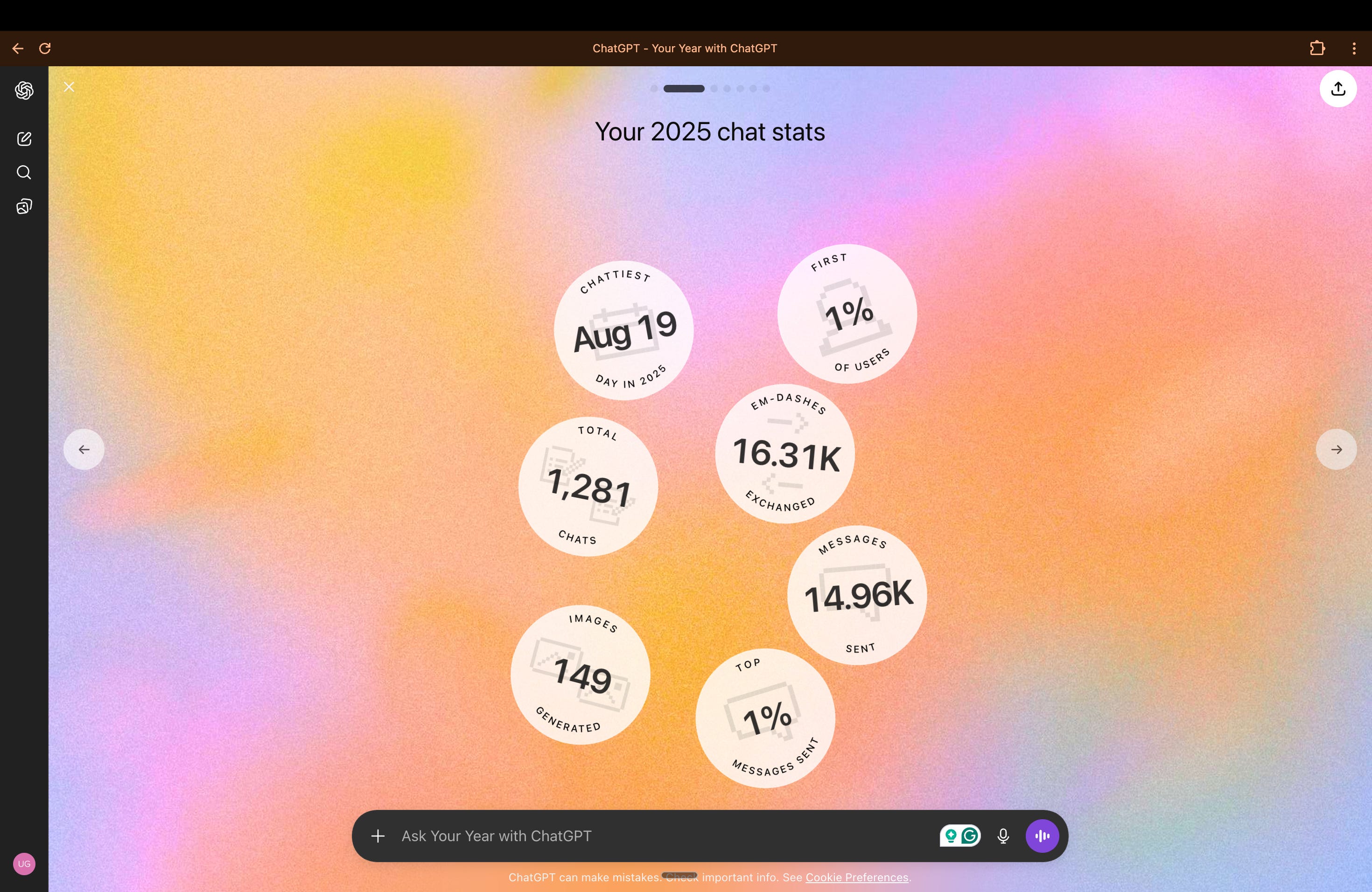
Raycast replaced MacOS’s default Spotlight feature for me pretty quickly. It’s faster, more flexible, doesn’t assume you only want to open apps or files, and goes far beyond just being a search box.
While I’m still discovering just how much it can do, some of the value is obvious. Emoji picker, clipboard history, window management, quick calculations and conversions in natural language, timers, Pomodoros, etc. Some of it is more situational but still handy, such as snippets for text I’m tired of typing, hotkeys that shave a few seconds off things I do constantly, extensions that let me control Spotify, translate text, jump into Slack or Zoom, track a flight, or stop my Mac from sleeping when I’m uploading something. There’s also a lot of small, nerdy stuff that’s just fun to poke at, like battery health or running a speed test without opening a browser.
It does feel complex, and I’m still exploring where the real leverage lies versus just having a more powerful Spotlight. But Raycast feels more versatile and extensible than anything Apple ships by default.
Superhuman
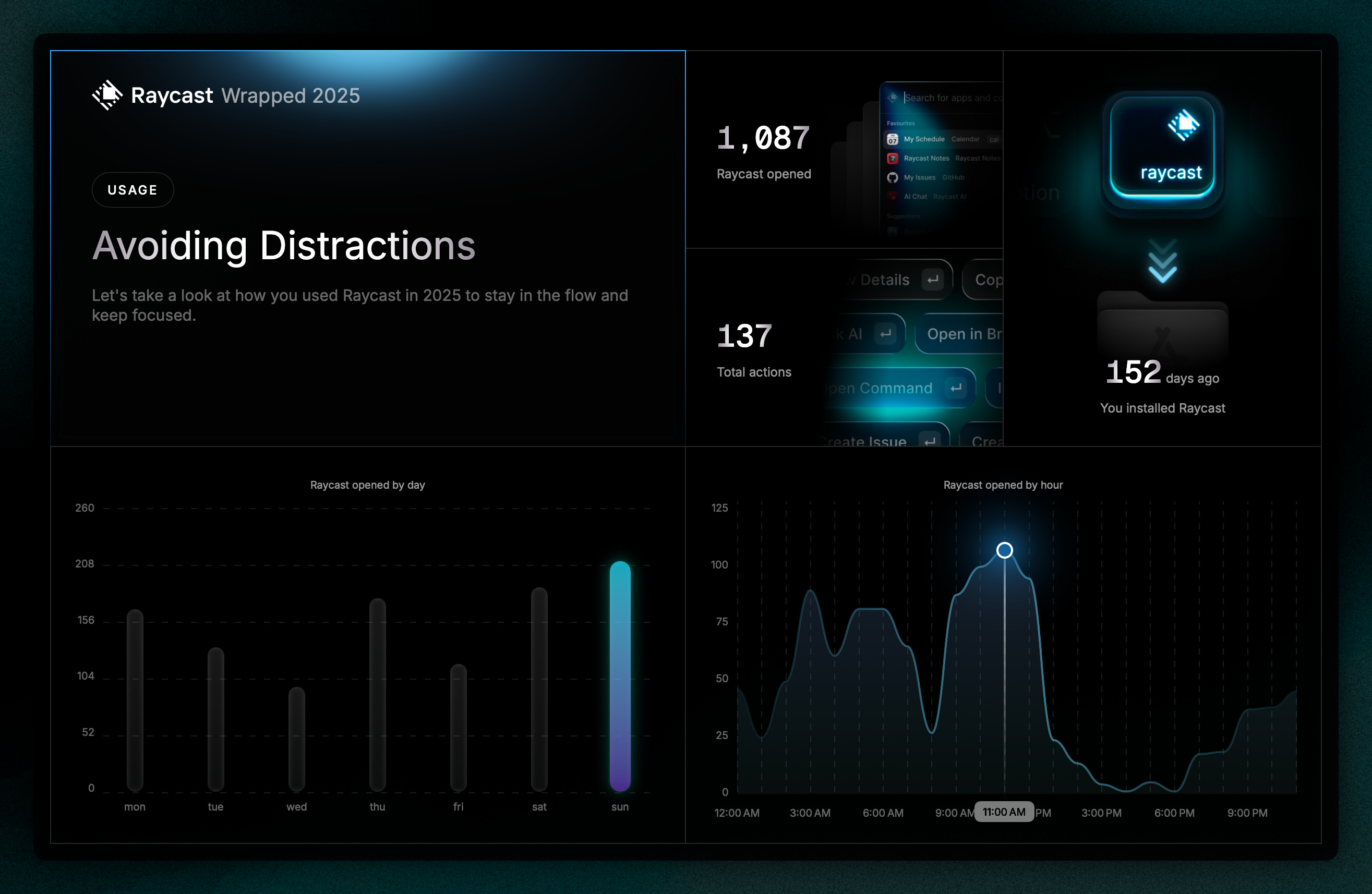
Superhuman is a very fast, very polished email client. Emails load noticeably quicker than the same accounts in Gmail, Outlook, or the native iOS app. The UI is sleek, and the keyboard shortcuts are clearly designed to deliver on the core promise of speed and efficiency.
Some of those shortcuts are genuinely good. Things like reply-all while changing BCC, changing the subject mid-reply, saving threads as PDFs, copying message or conversation contents. All things that take a few clicks elsewhere and becomes instant here. The chat-style layout for email is novel, but for me it hasn’t meaningfully changed how I think about or process email.
Where it starts to lose me is fit. The calendar experience hasn’t clicked, and I still default to Outlook. More broadly, speed has never been my core issue with email. I also don’t live exclusively in email. A lot of my work happens across Slack, WhatsApp, and other tools, which probably means I’m not the ideal Superhuman user.
That said, I do see the appeal. If you’re processing dozens or hundreds of emails a day and are willing to invest in learning the shortcuts, the gains may become material. I also want to spend more time with its AI features. Things like writing or rewriting in my voice, summarizing, shortening or expanding drafts, fixing grammar, and improving tone. Early impressions are that these are well-executed and genuinely lower the lift of writing. The learning curve isn’t trivial, but the in-product hints do a good job nudging you toward faster paths over time.
Gamma
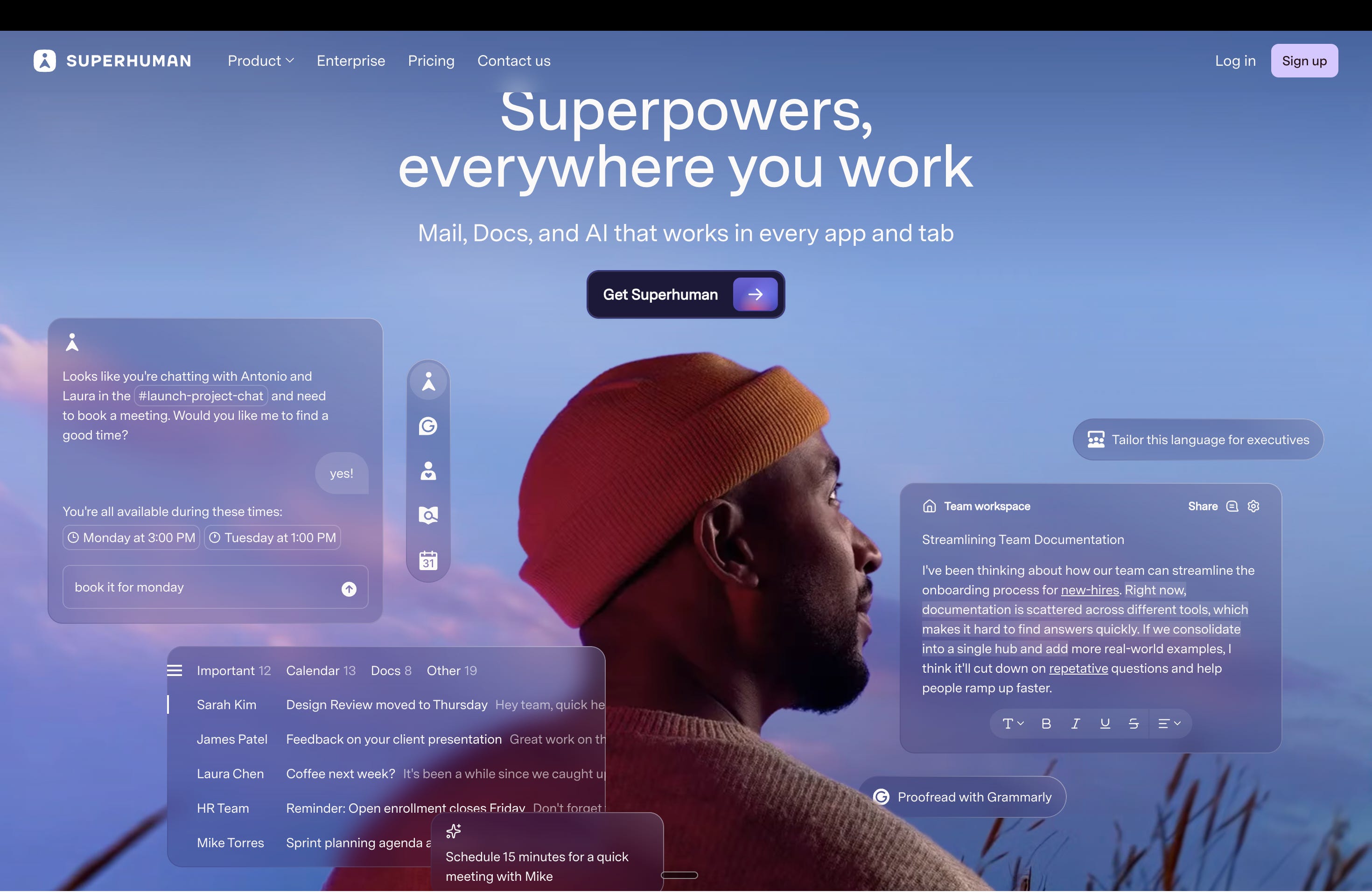
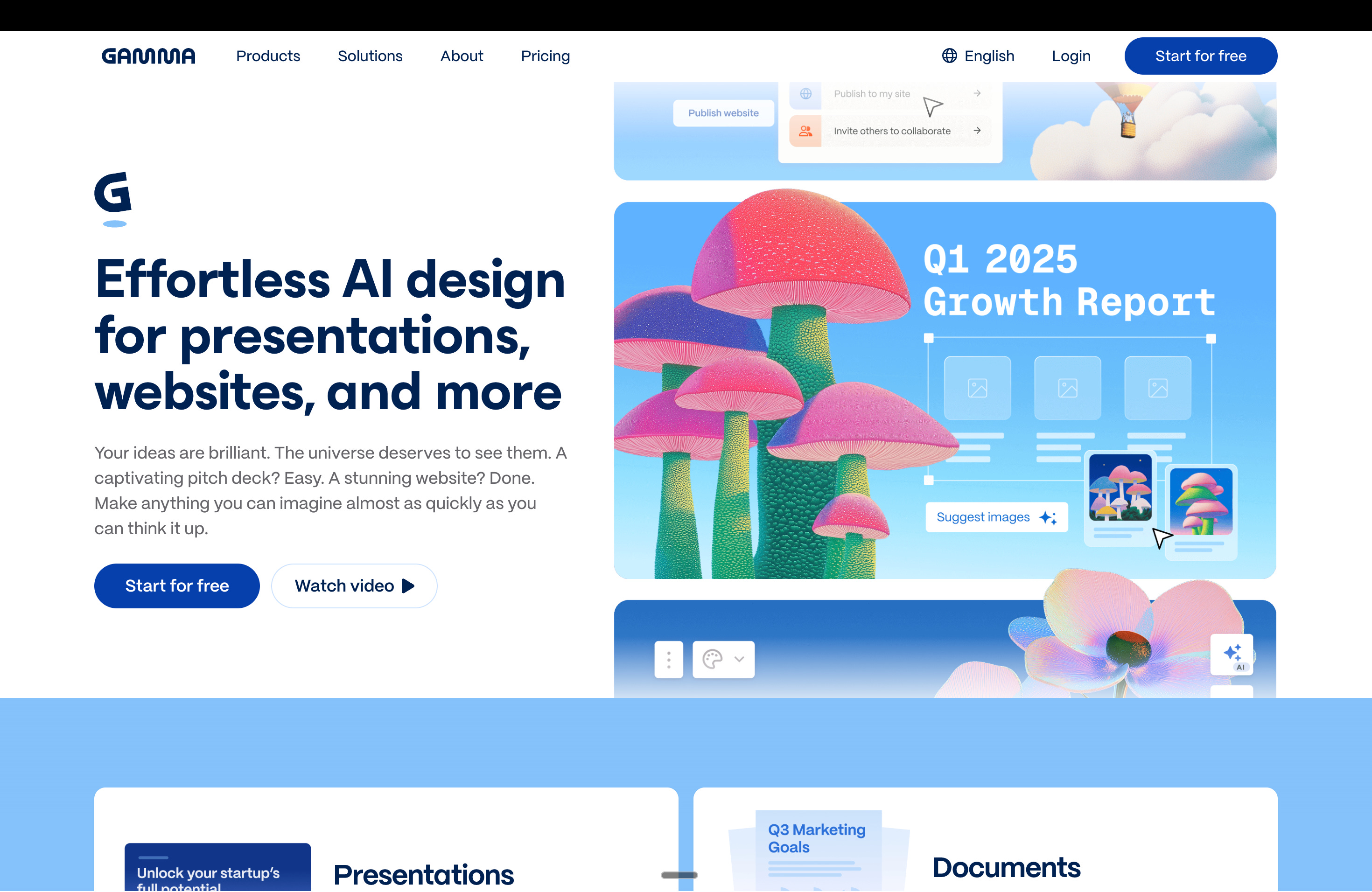
Gamma is a fast way to turn ideas into something that looks like a presentation. The speed is definitely there: It produces slides quickly, applies a consistent visual theme, and gets you to something presentable faster than starting from a blank deck. On first pass, that’s impressive.
In practice, it hasn’t grown on me. The output tends to feel over-templated, and I ran into several formatting issues that required plenty of manual cleanup. At that point, I usually find myself wishing I’d just built the deck in Google Slides or PowerPoint from the start.
It reminds me a bit of the Prezi wave from a few years ago: new format, lots of excitement, strong early adopters. But then most people quietly drifted back to the tools that were simpler, more flexible, and easier to control. I suspect something similar may happen here. Gamma can be useful for quick drafts or internal brainstorming, but for anything that needs real structure, nuance, or iteration, I still prefer traditional tools.
Next up in Part 2: the prototyping side of this experiment, where AI tools claim to take you from idea to working product in hours.
None of these tools are perfect. They drop context, miss nuance, and occasionally fight old habits. But they save real time in ways “AI-injected” email or chat tools never did. This list isn’t exhaustive. I’m constantly testing new tools, discarding others, and adjusting how I work as the landscape evolving.
At some point, thinking has to meet reality. In the next piece, I will focus on rapid prototyping tools and workflows that compress the distance between idea and reality, letting you test assumptions early and iterate.